|
|
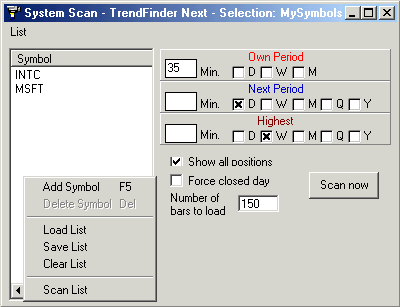
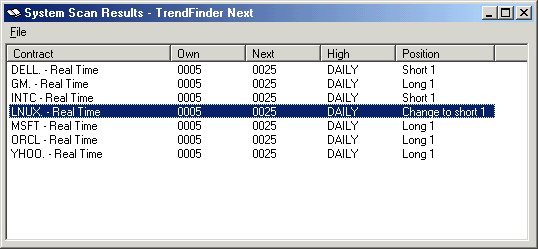
How to use the System Scan Symbol List. |
|
|
How to use the System Scan Symbol List. |
|
|
|
* Trading any market carries a high level of risk, and may not be suitable for all investors. The high degree of leverage can work against you as well as for you. Before deciding to invest you should carefully consider your investment objectives, level of experience, and risk appetite. * The possibility exists that you could sustain a loss of some or all of your initial investment and therefore you should not invest money that you cannot afford to lose. You should be aware of all the risks associated with trading, and seek advice from an independent financial advisor if you have any doubts. * The Views and opinions represented in the provided website links and resources are not controlled by the Referring Broker or the FCM. Further, the Referring Broker and the FCM are not responsible for their availability, content, or delivery of services. * You should be aware of all the risks associated with foreign exchange, futures, stocks, options, Cryptocurrencies trading, and seek advice from an independent financial advisor if you have any doubts. We do not offer any advise and trade using our software is at your own risk.
Home | Privacy Policy | Contact Information Copyright © 1996-2020 PAS Inc. | |
Copyright ©
1996-2000 Fibonacci Trader Corporation.
Last updated:
January 15, 2016
. All names mentioned in
this document are trademarks or registered trademarks of their respective
owners.